Usage tracking
In this lesson we'll explore how license usage tracking works in the Webiny Control Panel (WCP) and how license allocation is managed across different environments within a project.
In this lesson...
Here are the topics we'll cover
How usage tracking works.
License allocation across environments.
License Allocation Across Environments
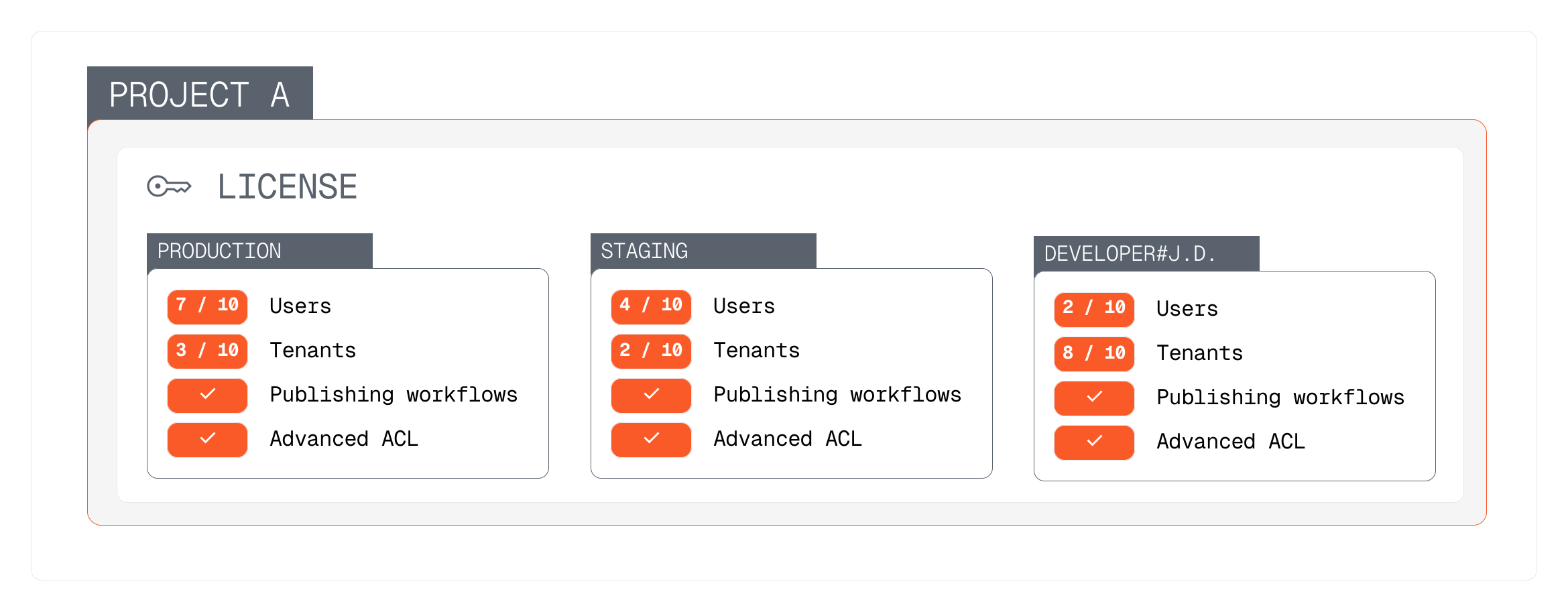
Each project can have multiple environments, such as development, staging, and production. When you assign a license to a project, that license is available to all environments within that project and every environment will have the same license features and allowances.
So, say you have a license with 10 users and 10 tenants and publishing workflows as a premium feature. If you have three environments (development, staging, and production) under that project, every environment will have the same license allowances of 10 users, 10 tenants, and access to publishing workflows. This means that you can have 10 users and 10 tenants in each environment.
In addition to environments, every team member assigned to the project will also have access to the license features and allowances that they can use for their own personal development and testing purposes.
We chose this approach so that developers can freely work on different environments without worrying about license limitations, while still ensuring that the overall usage is tracked and managed effectively.
All environments, with the exception of the production environment, are intended for development and testing purposes only. They should not be used for live applications or production workloads. The production environment is the only environment that should be used for live applications and production workloads. To prevent misuse, non-production environments have a limit on daily API calls. If you exceed this limit, you may experience temporary restrictions on API access until the limit resets.