Understanding Different HCMS APIs
Webiny Headless CMS provides three distinct GraphQL APIs, each designed for specific use cases. Understanding when to use each API is crucial for building efficient and secure applications.
In this lesson, we'll explore the Manage, Read, and Preview APIs, their differences, and best practices for using them.
In this lesson...
Here are the topics we'll cover
Manage API for content administration.
Read API for public content consumption.
Preview API for draft content viewing.
The Three APIs
Webiny Headless CMS automatically generates three separate GraphQL APIs for every content model you create:
- Manage API - For content management operations
- Read API - For public-facing applications
- Preview API - For previewing unpublished content
Each API has its own endpoint and serves different purposes.
Finding Your API URLs
The GraphQL API URLs follow a specific structure:
https://{your-domain}/cms/{manage|read|preview}
Examples:
- Manage API:
https://d1ud9w3i9i7d77.cloudfront.net/cms/manage - Read API:
https://d1ud9w3i9i7d77.cloudfront.net/cms/read - Preview API:
https://d1ud9w3i9i7d77.cloudfront.net/cms/preview
How to Find Your URLs
Option 1: Via Webiny CLI
Run yarn webiny info in your terminal to see all your API endpoints, including the Headless CMS URLs.
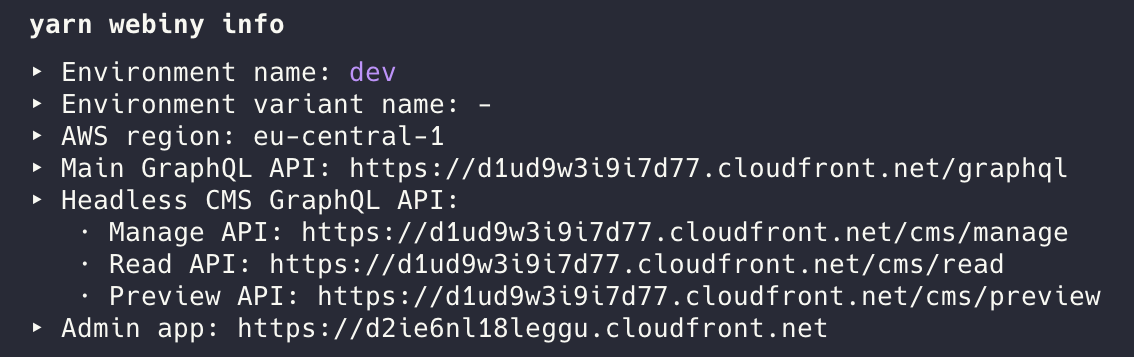
Option 2: Via API Playground
Navigate to API Playground in the Webiny Admin sidebar. The URL for the currently selected API is displayed at the top of the playground interface.
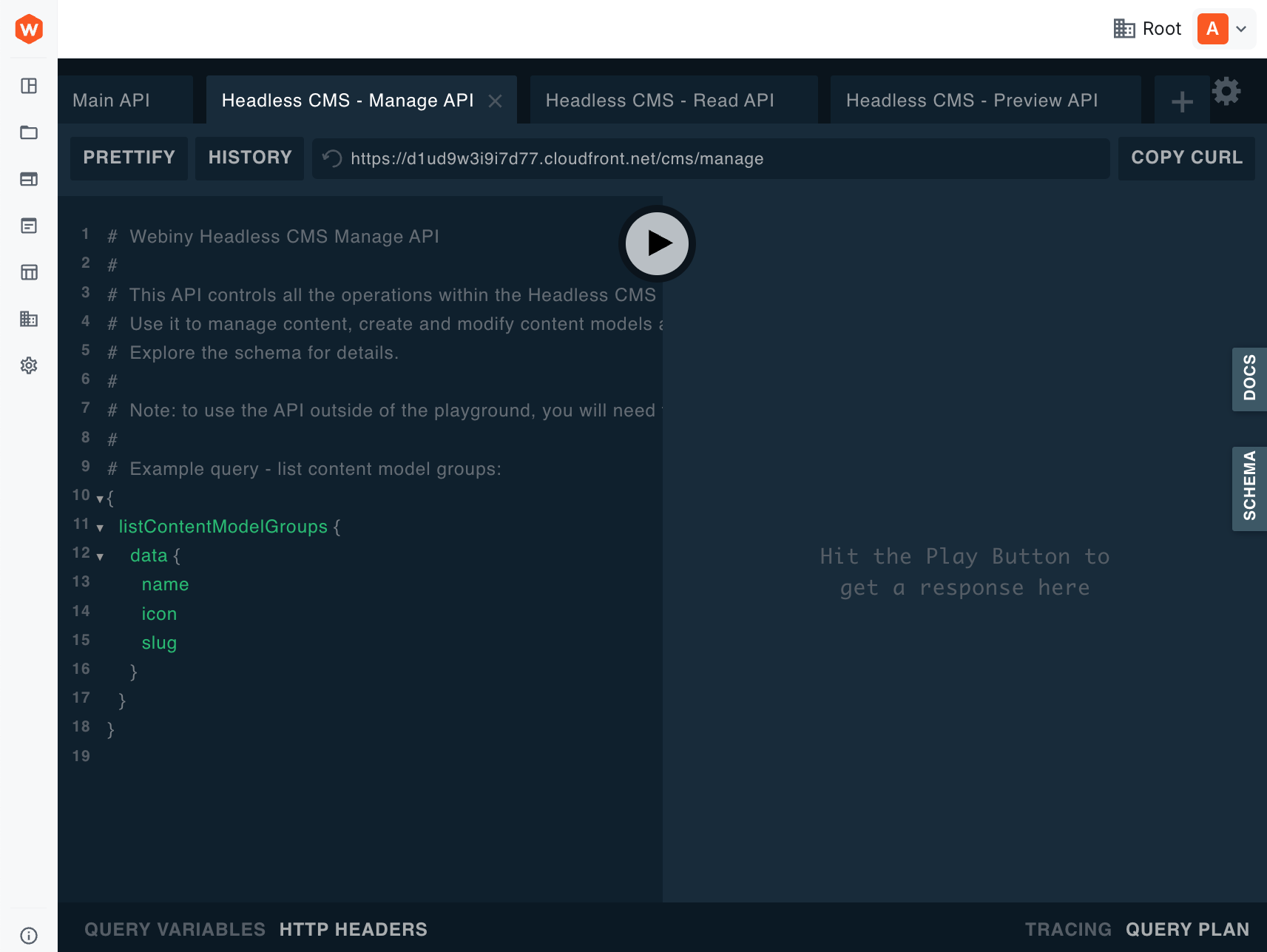
We'll explore the API Playground in detail in the next lesson (Lesson 6), where you'll learn how to test queries and explore your GraphQL schema interactively.
Manage API
The Manage API provides full CRUD operations and access to all revisions. This is the API that the Webiny Admin application uses.
Purpose
The Manage API is designed for:
- Content management operations
- Creating, updating, and deleting content
- Accessing all revisions
- Publishing and unpublishing
- Admin interfaces
What It Returns
- ✅ All revisions of all entries
- ✅ Full revision history
- ✅ Draft and published content
- ✅ Metadata (
metafield with status, version, etc.)
What It Can Do
Unlike Read and Preview APIs (which are read-only), the Manage API supports:
- Mutations - Create, update, delete operations
- Publishing - Publish and unpublish content
- Revision management - Access and restore previous revisions
Response Structure
The Manage API returns data with:
- User-defined fields in the
valuesobject - System fields at the top level (e.g.,
id,entryId,createdOn,lastPublishedOn) metafield containing status (published,draft,unpublished) and version number- Reference fields return metadata (
id,entryId,modelId) but cannot query nestedvaluesfrom referenced entries
Example Use Case
The Webiny Admin application uses the Manage API to let editors create, edit, and publish content. When you're logged into the Admin and working with content, you're using the Manage API.
The Manage API is protected by Webiny's security layer. Only users with appropriate roles and permissions (content editors, administrators) can access it. The Webiny Admin UI automatically adapts based on user permissions.
When to Use Manage API
- ✅ Admin interfaces and dashboards
- ✅ Content management systems
- ✅ Authenticated backend operations
- ✅ Bulk operations and migrations
- ❌ Public-facing applications
- ❌ Unauthenticated users
Read API
The Read API is your public-facing API for production applications.
Purpose
The Read API returns only published content. It's designed for:
- Your website or mobile app
- Public-facing content consumption
- High-performance queries
- Caching and CDN integration
What It Returns
- ✅ Published revisions only
- ❌ Draft revisions are not accessible
- ❌ Unpublished entries are not accessible
Response Structure
The Read API returns data with:
- User-defined fields in the
valuesobject (e.g.,name,price,description) - System fields at the top level (e.g.,
id,entryId,createdOn,lastPublishedOn) - No
metafield - Status and version information is not included since it's not needed for public consumption - Reference fields can query nested
valuesfrom referenced entries (e.g.,category { id, values { name } }), but returnnullif the referenced entry is not published
Example Use Case
Your e-commerce website queries the Read API to display products to customers. Only published products appear on the site, ensuring customers never see draft or work-in-progress content.
The Read API is optimized for performance and can be cached aggressively since it only returns published, stable content.
When to Use Read API
- ✅ Production websites and apps
- ✅ Public content display
- ✅ High-traffic scenarios
- ✅ Content that should be cached
- ❌ Admin interfaces
- ❌ Preview functionality
Preview API
The Preview API is essentially like the Read API, except it can show draft content too. It returns the latest revision of content, whether published or draft.
Purpose
The Preview API is designed for:
- Preview functionality in your application
- Seeing content changes before publishing
- Editorial workflows
- Content review processes
What It Returns
- ✅ Latest revision (published OR draft)
- ✅ Unpublished entries
- ✅ All content, regardless of status
- ✅ Draft reference fields (unlike Read API which shows
nullfor unpublished references)
Response Structure
The Preview API returns data with:
- User-defined fields in the
valuesobject - System fields at the top level
- No
metafield - Similar to Read API - Reference fields can query nested
valuesfrom referenced entries (e.g.,category { id, values { name } }), and return complete data even if the referenced entry is unpublished
Example Use Case
Your content editors want to preview how a new product will look on the website before publishing it. Your app has a "Preview Mode" that switches to the Preview API, allowing editors to see unpublished content and unpublished references as they'll appear once everything is published.
Key Difference from Read API:
The Preview API will show unpublished references as complete objects with their data, while the Read API returns null for those same references. This allows editors to preview how content will look with all relationships in place before publishing.
A common pattern is to build a "Preview Mode" toggle in your application that switches between Read and Preview APIs. Content editors can preview changes before publishing.
When to Use Preview API
- ✅ Preview modes in your application
- ✅ Content staging workflows
- ✅ Editorial review processes
- ✅ Testing content changes
- ❌ Public-facing production content
- ❌ High-traffic public pages
API Comparison
Here's a quick comparison of the three APIs:
| Feature | Manage API | Read API | Preview API |
|---|---|---|---|
| Returns published content | Yes | Yes | Yes |
| Returns draft content | Yes | No | Yes |
| Returns all revisions | Yes | No | No |
| Supports mutations | Yes | No | No |
Includes meta field | Yes | No | No |
| Shows unpublished references | Yes | No | Yes |
| Authentication required | Yes | Yes | Yes |
| Caching friendly | No | High | Low |
| Use case | Admin interfaces | Production apps | Preview modes |
All three API types require authentication via API keys. You'll learn how to create and use API keys in Lesson 7: Reading Records via the API.
Best Practices
1. Use the Right API for the Job
Don't use the Manage API when the Read API would suffice. Each API is optimized for its specific purpose.
For public content on your website, use the Read API, not the Manage API. The Read API is faster, cacheable, and designed for public consumption.
2. Implement Preview Mode Correctly
When implementing preview functionality, use a conditional approach that switches between Read and Preview APIs based on whether the user is in preview mode.
Preview mode should be protected! Use authentication or preview tokens to ensure only authorized users can preview unpublished content.
3. Cache Read API Responses
Since the Read API only returns published content, you can cache responses aggressively. Consider using CDN caching, browser caching, or application-level caching for optimal performance.
4. Don't Cache Preview or Manage APIs
Preview and Manage APIs return dynamic content that changes frequently. Avoid caching these responses as they need to reflect the latest state of your content.
Reference Fields Across APIs
Reference fields behave differently across the three APIs:
Manage API
- Returns reference metadata:
id,entryId,modelId - Cannot query nested
valuesfrom referenced entries - Can access
meta.revisionsto see all revisions of the reference - Shows all references regardless of publish status
- Designed for administrative operations, not nested data retrieval
Example:
category {
  id
  entryId
  modelId
  meta {
    revisions {
      id
    }
  }
}
Read API
- Can query nested
valuesfrom referenced entries - Returns
nullfor unpublished references - Only shows references to published entries
- Optimized for retrieving complete nested data
Example:
category {
  id
  values {
    name
    slug
  }
}
Preview API
- Can query nested
valuesfrom referenced entries - Returns complete reference data including unpublished entries
- Shows the latest revision of referenced content
- Allows editors to preview content with all relationships intact
Example:
category {
  id
  values {
    name
    slug
  }
}
Summary
Webiny provides three specialized GraphQL APIs:
- Manage API - Full CRUD operations, all revisions, admin only
- Read API - Published content only, optimized for production
- Preview API - Latest revisions (draft or published), for preview modes
Key takeaways:
- Start with Manage API in the Admin to understand the full data structure
- Use Read API for all public-facing applications
- Use Preview API only for preview/staging functionality
- All APIs require authentication via API keys
- Cache Read API responses, not Preview or Manage
- Implement preview modes with proper security
- References resolve differently across APIs
In the next two lessons, you'll learn how to:
- Use the API Playground to test and explore these APIs (Lesson 6)
- Create API keys and fetch data from your applications (Lesson 7)
It's time to take a quiz!
Test your knowledge and see what you've just learned.